WordPress database error: [Table 'ulop_m0w4sk4wos84g4kkgkcokw8g.wp_rank_math_redirections_cache' doesn't exist]
SELECT * FROM wp_rank_math_redirections_cache WHERE ( object_id = 1253 and object_type = 'post' ) OR BINARY from_url = 'accessing-onedrive-on-the-web-google-chrome' ORDER BY object_id DESC

WordPress database error: [Table 'ulop_m0w4sk4wos84g4kkgkcokw8g.wp_rank_math_redirections' doesn't exist]
SELECT * FROM wp_rank_math_redirections WHERE status = 'active' AND ( sources like '%a:2:{s:7:\"pattern\";s:43:\"accessing-onedrive-on-the-web-google-chrome\";s:10:\"comparison\";s:5:\"exact\";}%' or sources like '%accessing%' or sources like '%onedrive%' or sources like '%on%' or sources like '%the%' or sources like '%web%' or sources like '%google%' or sources like '%chrome%' ) ORDER BY updated DESC

WordPress database error: [Table 'ulop_m0w4sk4wos84g4kkgkcokw8g.wp_rank_math_redirections' doesn't exist]
SELECT * FROM wp_rank_math_redirections WHERE status = 'active' ORDER BY updated DESC

Accessing OneDrive on the Web (Google Chrome) - UKZN Digital Learning Portal

Instructional Guide on How to Access OneDrive Web

Step 1:

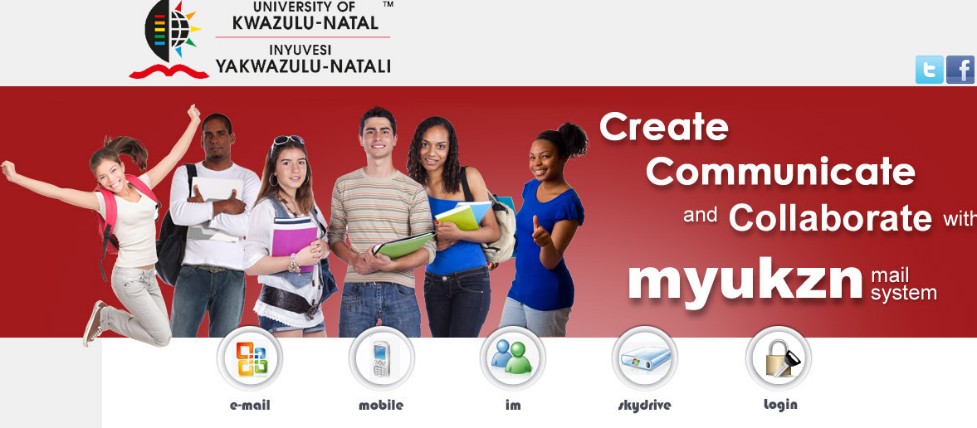
  • Using your web browser (recommended: Google Chrome), go to this web address http://my.ukzn.ac.za/ and the screen below should display.
Step 2:

  • Click on Login.

Step 3:

  • On the screen that comes next, enter your UKZN student email address (that is, your student number ending with @stu.ukzn.ac.za) e.g. 123456789@stu.ukzn.ac.za. Click Next.


Step 4:

  • If you see the screen below, select Work or school account.

Step 5:

  • Enter your UKZN LAN Password. Click Sign in. If you forgot your password, click Forgot my password and follow the instructions that are provided.

Step 6:

  • If the screen below appears, decide if you want to stay signed in or not, by clicking either No or Yes. It is recommended to click No if you are NOT using your personal computer.

Step 7:

Next, the landing page below will be displayed after a successful login. All the applications displayed on the landing page are for Microsoft 365 and are free to use when using your student account.
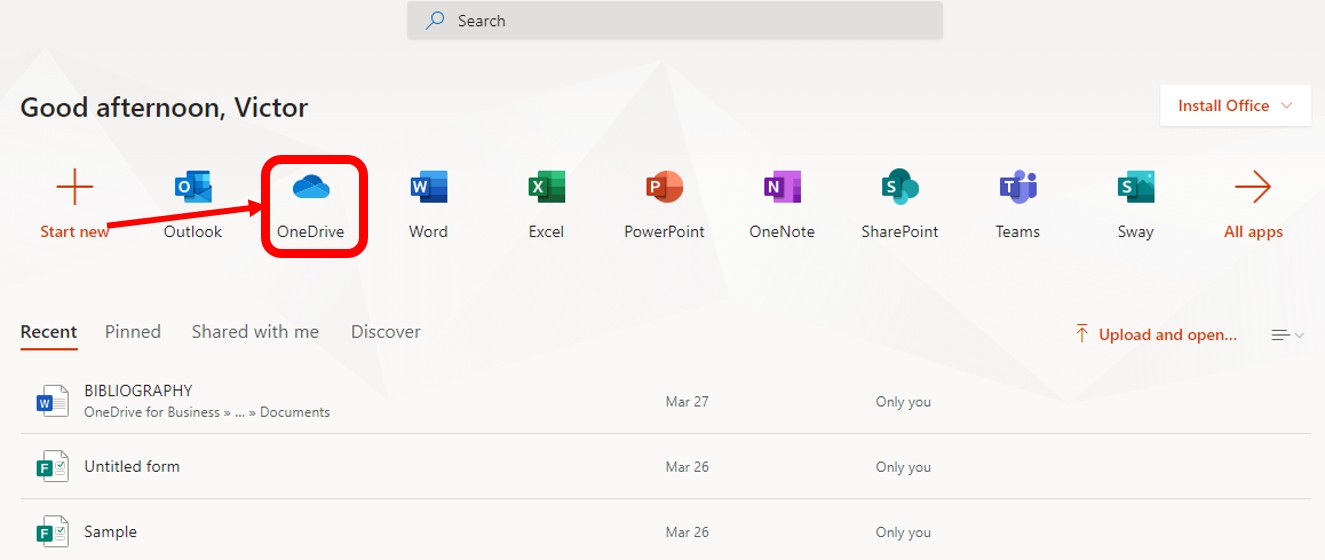
  • On the screen that follows, click on the OneDrive icon.

Step 8:

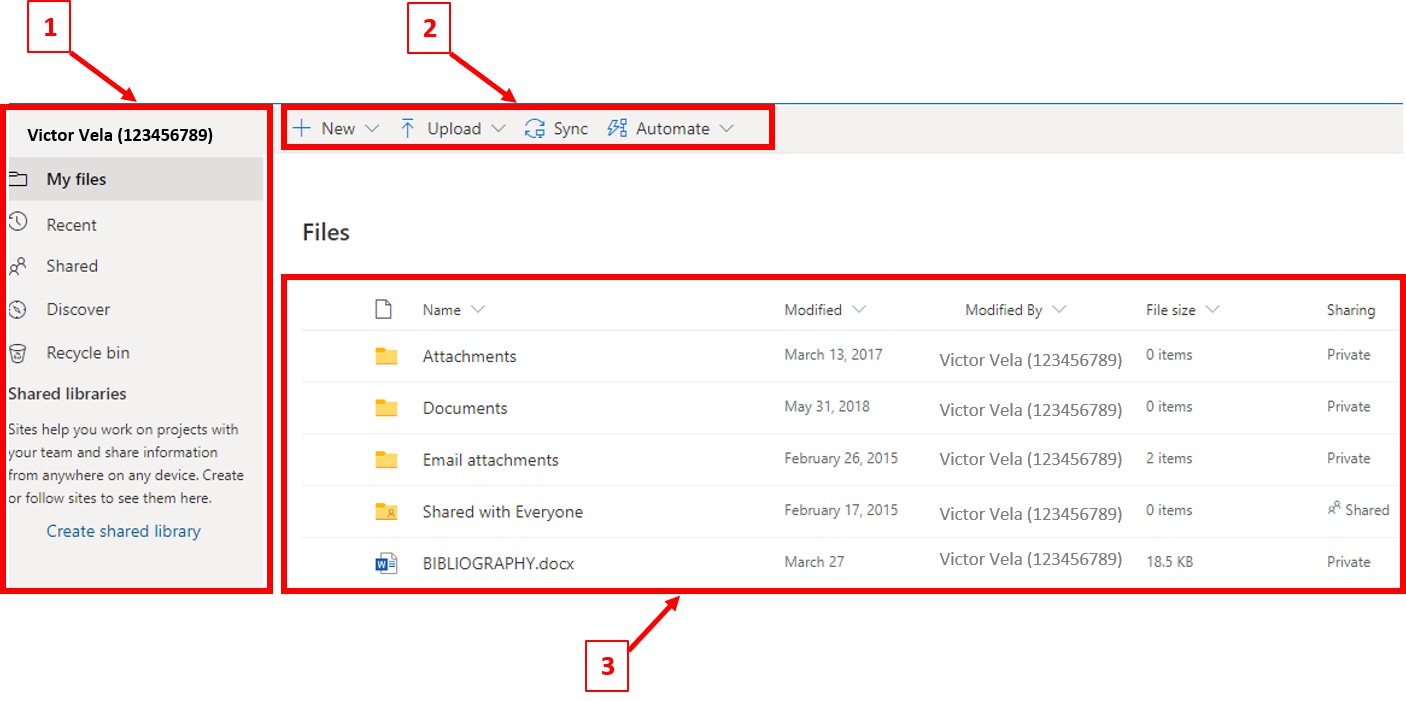
  • The screen below appears. The labelled screenshot below shows some basic functions in the OneDrive web application for Microsoft 365.
  1. This section begins with a heading containing your student information – student name (student number). The tabs in the section are My Files, Recent, Shared, Discover, Recycle bin and shared library.
    • My Files: Displays all your files and folders
    • Recent: Shows your most recent files and folders
    • Shared: This shows the files and folders that are shared with you or that you have shared with another OneDrive user.
    • Discover: Helps you discover new, relevant or trending content from across your organisation.
    • Recycle bin: All deleted files are stored here.

  2. In this section, you can add – New Folder, Word document, Excel Workbook, PowerPoint presentation, Link, Forms for Excel and OneNote notebook – to OneDrive. The Uploadbutton enables you to upload files and folders from your computer to OneDrive online. The Sync button synchronises your online OneDrive files with your computer’s OneDrive files. The Automate button enables you to create a flow, see your flows and configure flows.

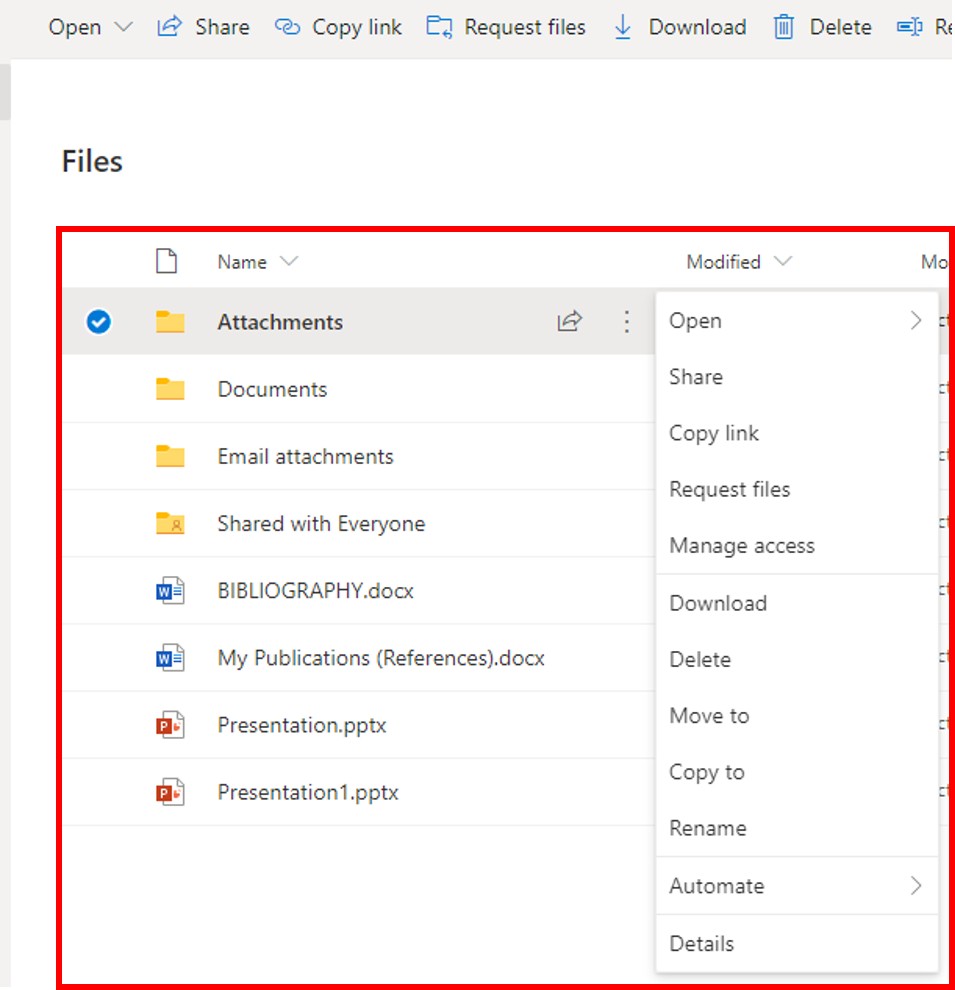
  3. This area displays the content of each of the tabs in the section labelled 1 above. Furthermore, this area displays the files according to the prescribed headings (Name, Modified, Modified By, File Size, Sharing) which can also be used to filter the arrangements of the files. Actions can be performed on selected file(s) by right-clicking on a file and choosing the desired option.
iSiZulu Version»