Instructional Guide on How to Install OneDrive Desktop Application

Before installing the OneDrive desktop application, search your computer to ensure that the application has not already been installed when installing your Microsoft Office 365 application suite. 

Note: If your computer is running on Windows 10, then OneDrive is already installed on your computer. Otherwise, if you would need to install the OneDrive application, follow the steps below:

Step 1:

  • Using your web browser (recommended: Google Chrome), Go to this web address http://my.ukzn.ac.za/ and the screen below should display.

Step 2:

  • Click on Login.

Step 3:

  • On the screen that comes next, enter your UKZN student email address (that is, your student number ending with @stu.ukzn.ac.za) e.g. 123456789@stu.ukzn.ac.za. Click Next.


Step 4:

  • If you see the screen below, select Work or school account.

Step 5:

  • Enter your UKZN LAN Password. Click Sign in. If you forgot your password, click Forgot my password and follow the instructions that are provided.

Step 6:

  • If the screen below appears, decide if you want to stay signed in or not, by clicking either No or Yes. It is recommended to click No if you are NOT using your personal computer.

Step 7:

Next, the landing page below will be displayed after a successful login. All the applications displayed on the landing page are for Microsoft 365 and are free to use when using your student account.
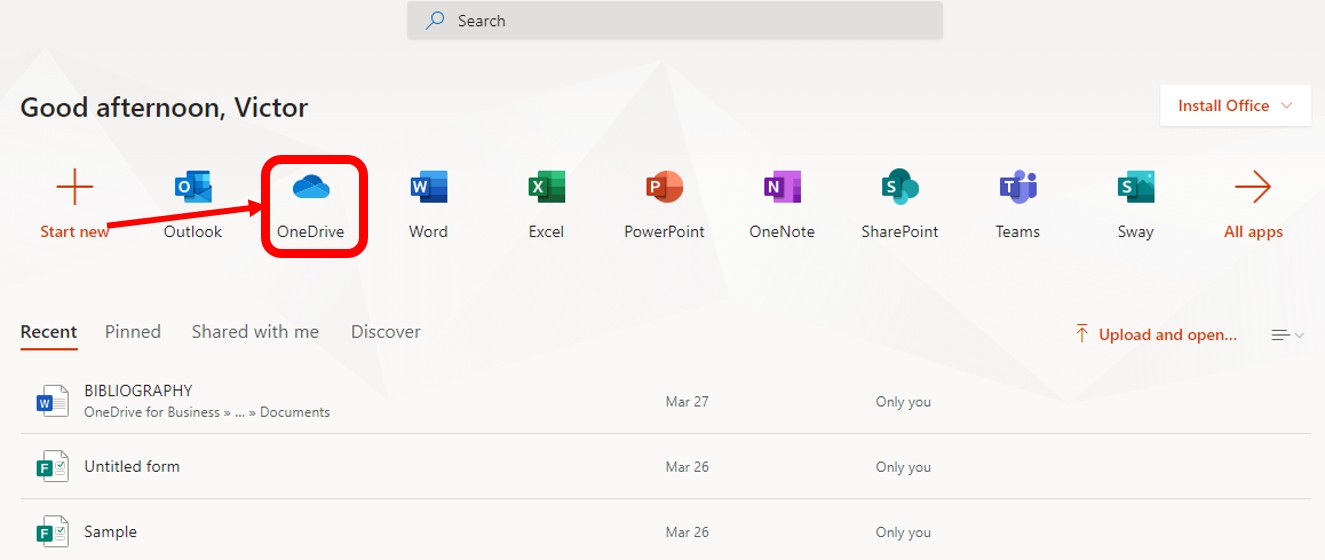
  • On the screen that follows, click on the OneDrive icon.

Step 8:

  • In the screenshot below, click on Get the OneDrive apps.

Step 9:

OR


Step 10:

  • Next, when presented with the screen above, click on Click here to download (if the OneDrive application is not found on your computer). Otherwise, click on Start OneDrive to launch the OneDrive application on your computer.
  • In the screen below, enter your UKZN student email address (that is, your student number ending with @stu.ukzn.ac.za) e.g. 123456789@stu.ukzn.ac.za. Click Sign In.

Step 11:

  • Enter your UKZN LAN Password. Click Sign In.

Step 12:

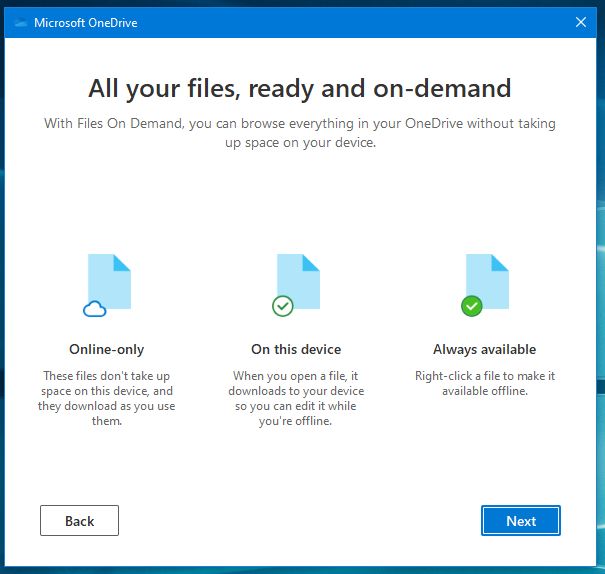
  • Click Next when you see any or all of the screens below.

Step 13:

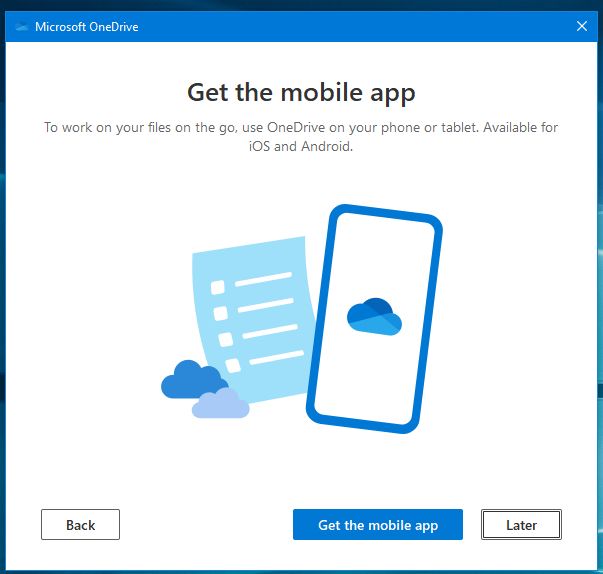
  • If you wish to install the OneDrive app on your mobile device, click on “Get the mobile app”, otherwise, click Later.

Step 14:

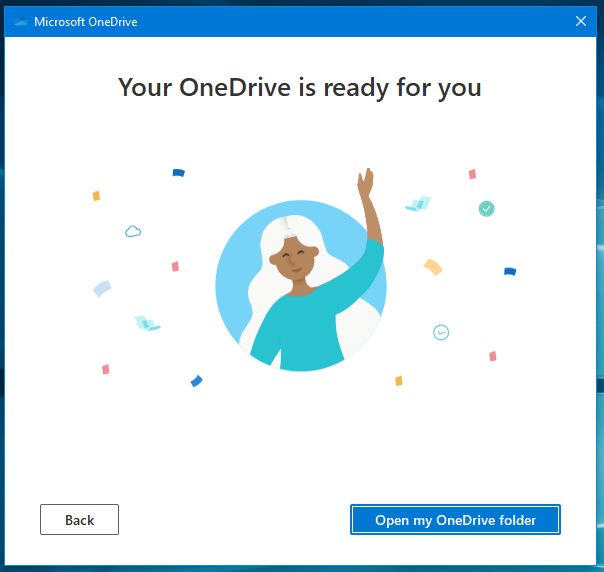
  • Now your OneDrive folder has been created on your computer and is ready to use. Click Open my OneDrive folder to get access to your OneDrive files on your computer.

Step 15:

  • The screen below shows the location of your OneDrive folder within the File Explorer on your computer.


For more information on how to use the installed OneDrive desktop application, click here.

iSiZulu Version»