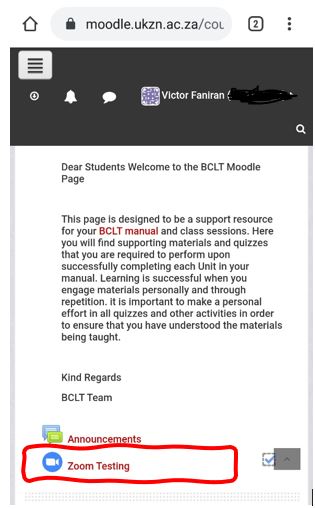
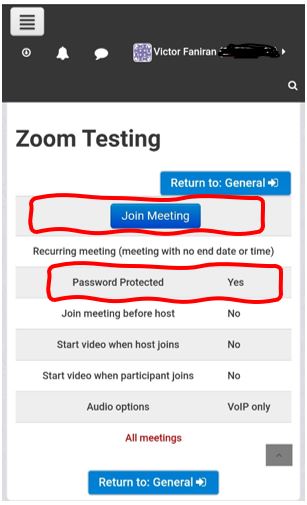
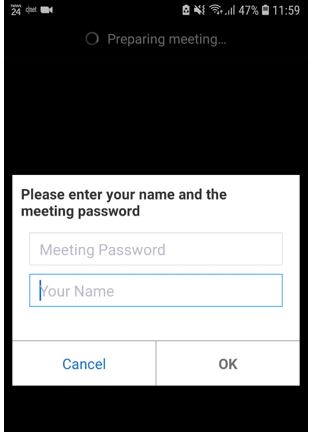
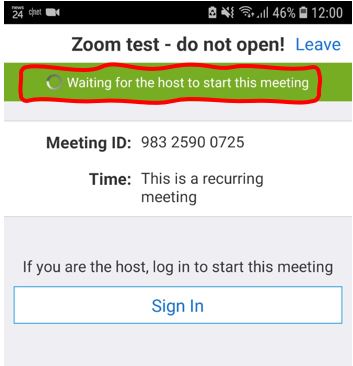
Step 1:
- To join a Zoom session from Moodle, Login into Moodle using your student number and password.
Step 2:
- Click My Courses (Top Left), Select the Course you wish to join its Zoom session.

Zoom meetings (or sessions) are made up of several roles. One of the roles in a Zoom meeting is a Participant. As a student, you will most likely take the participant role during a Zoom session.
In order to have the best experience on the Zoom application, download and install the Zoom application.
For devices using Windows operating system, the download should start instantly.
For Apple and Android devices, click on the appropriate store icons to download the application.
After installing the application, Sign In.


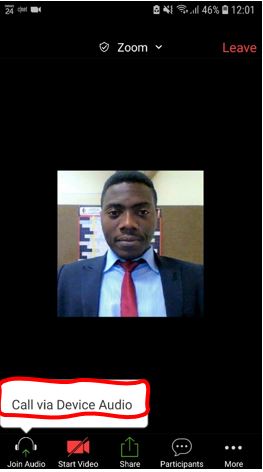
Once the lecturer starts the session, you should be presented with the following screen. You must click on the Call Via Device Audio button to be able to hear the audio in the session.
a) If the Call Via Device Audio button is not displaying, click on the Join Audio control to pop out the Call Via Device Audio option.

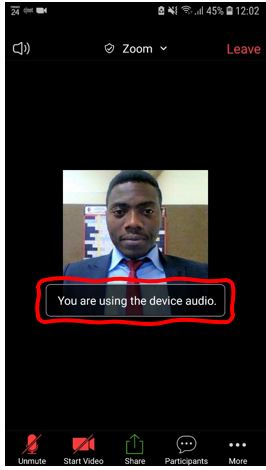
b) After clicking the Call Via Device Audio button, you should get the notification below.

The following are the controls or functions that can be used in the Zoom session as a student.

The descriptions of these labels 1 – 8 are as follows:
1 – The Microphone button – Click to Mute or Unmute. When you see this icon
it means your voice and any other sounds around you can be heard by everyone in the Zoom session. When you see this icon
it means your voice and other sounds cannot be heard.
2 – The Video button – Click to Start or Stop your video. When you see this icon ![]()
it means your video is off and no one can see you. When you see this icon
it means your video is on and everyone in the Zoom session can see you.
3 – The Share Screen button – is used to share your screen, files or application in the Zoom session. However, this feature may be disabled by your lecturer (or host).
4 – The Participants button – This enables you to view all the people present in the Zoom session. It also contains icons that allow you to notify the lecturer e.g. yes, no, go slower, go faster, away, clap, raise hand (this notifies the lecturer that your hand is raised which may signify that you want to ask or answer a question).
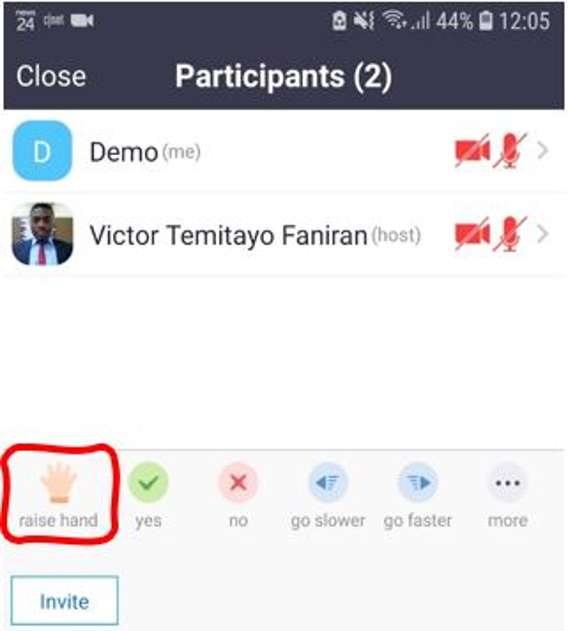
When you use the raise hand feature, a hand icon shows on your Zoom application screen and it can be lowered by the lecturer or yourself. To lower your hand by yourself, click on the same icon again.

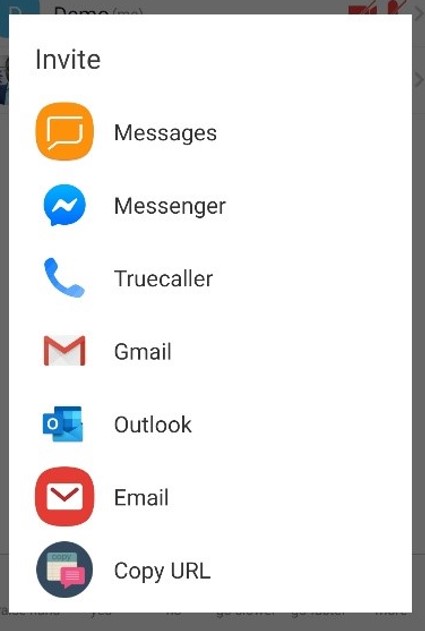
The Invite button can be used to invite your colleagues to the ongoing meeting or session.

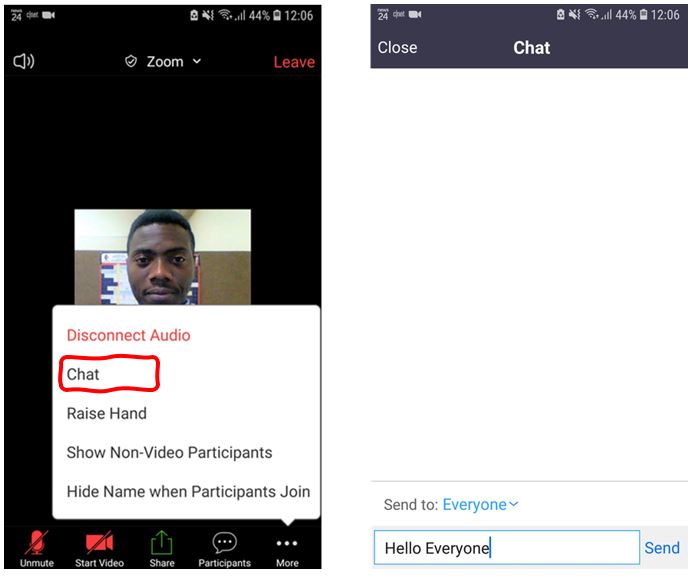
5 – The More button – Click to show more functions that you can perform in the Zoom session. An important function is the Chat group. The chat group allows you to Send a message to Everyone, the lecturer only or to a specific student.

6 – The Speaker button – Click to turn ON or OFF the sounds coming from the Zoom session.
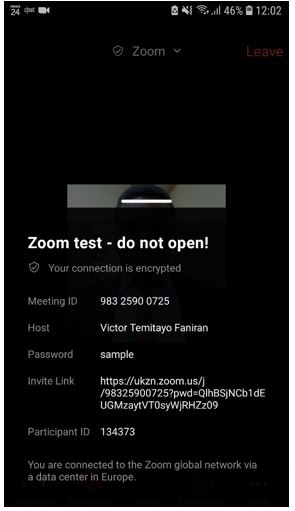
7 – The Zoom button – Click to show detailed information of the ongoing Zoom session.

8 – The Leave button – Click this button when you are ready to Leave the Session.